
Owner’s manual
The controller on your wall
Two buttons and a switch. This is what each one does, what the screen is telling you, and the few combinations worth knowing before you need them.
Updated September 19, 2026
What is what
Everything you can touch
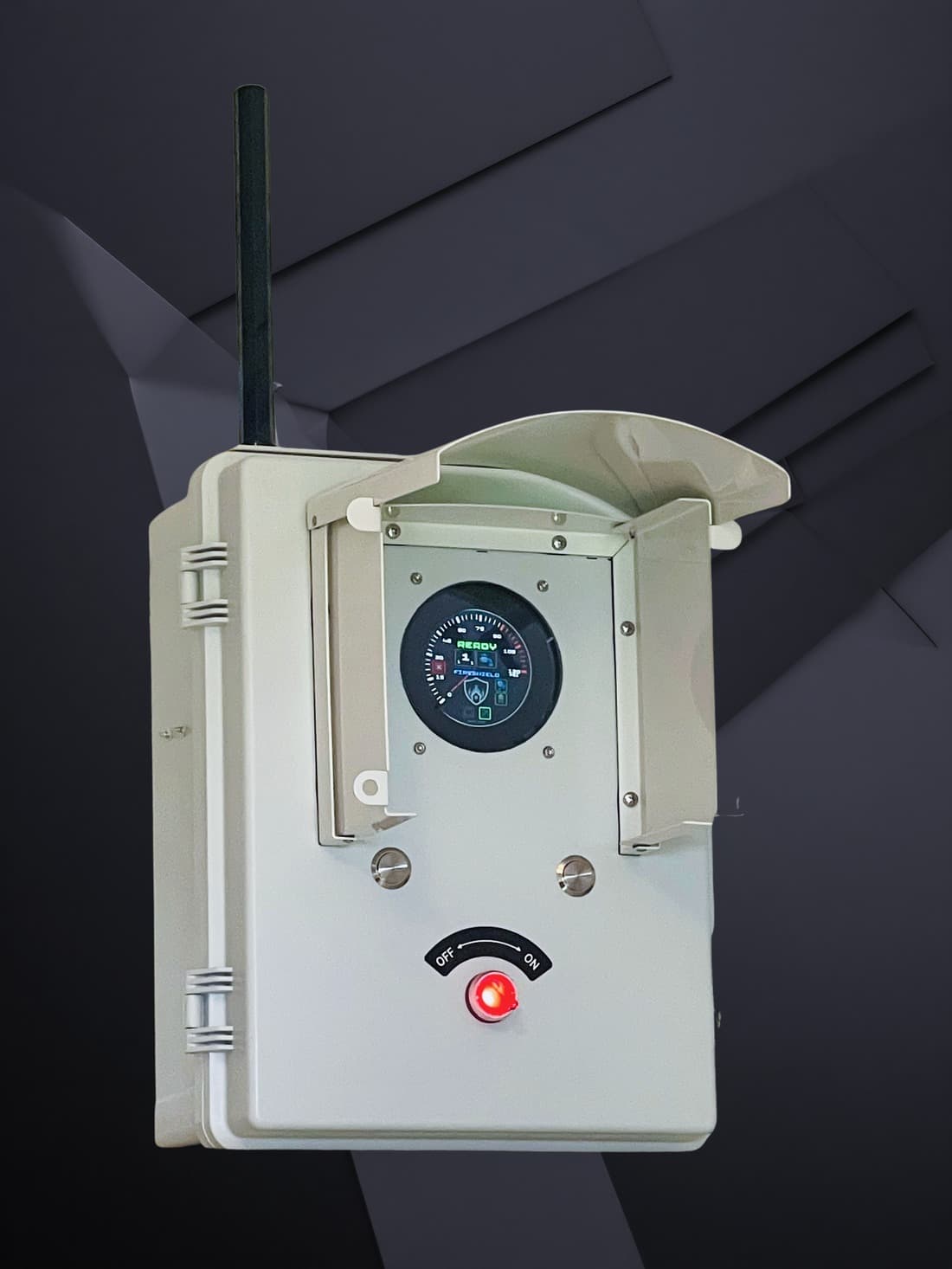
- 1
Antenna
Cellular and satellite link.
- 2
Sun hood
Keeps the screen readable in daylight.
- 3
Status screen
The same reading as the app.
- 4
Left button
Wake · test run without foam.
- 5
Right button
Wake · test run with foam.
- 6
OFF / ON switch
Starts and stops the system.
The screen
One word tells you the state
The screen shows the same reading as the app, so what you see at the box is what someone looking at their phone sees. The color is deliberate: green is at rest, orange is something about to happen or winding down, red is water moving, blue is the controller working on itself.
- READY
- Armed and waiting. Valves closed, nothing running.
- PENDING
- Something has asked the system to start.
- With a countdown, that is your delay running down and you can still stop it. Without a countdown, the step is already under way and the system moves on immediately.
- ACTIVE
- Running a full activation, with foam.
- Shown in orange rather than red while a quick stop is working through.
- NOFOAM
- Running a full activation, water only. No foam is being drawn.
- One word on the screen, exactly as printed.
- TEST
- A test run, with foam. Three loops through the zones, then it stops by itself.
- TESTNF
- A test run without foam — the same proving cycle, water only.
- ENDING
- Closing the valves and draining the lines. Not a fault; it settles back to READY on its own.
- UPDATE
- Taking new settings from your account — zones, distance, delay, schedule.
- UPGRADE
- Installing new controller firmware.
- RESET
- A restart is queued. The controller usually reboots within twenty to thirty seconds of showing this, then comes back to READY on its own.
Around the word you will also see water pressure, flow, which zone is running, time remaining, and the distance to the nearest active wildfire. The screen dims itself when nobody is there; one press of either button wakes it.
Reference
Every combination, and what it does
Anything marked READY only is ignored while the system is already running — the controller will not interrupt itself.
| Control | Do this | What happens | When |
|---|---|---|---|
| Left button | One press | Wakes the screen. Nothing else — a single press can never start the system. | Any time |
| Left button | Two quick presses | Test run, water only. Steps through your zones so you can see every head throw, without using foam. | READY only |
| Right button | One press | Wakes the screen. | Any time |
| Right button | Two quick presses | Test run with foam. The same cycle as the left-button test, with foam proportioned in. | READY only |
| OFF / ON switch | Turn to ON | Starts a full activation, using whatever foam and zone settings you have saved in the app. | Any time |
| OFF / ON switch | Turn to OFF | Stops the system and closes the valves. | While running |
| Left button + switch | Hold the left button while turning the switch to ON | Starts without foam, for this run only. Your saved setting is untouched. | Any time |
| Right button + switch | Hold the right button while turning the switch to ON | Starts with foam and runs every zone, ignoring any zone scenario you have set. Use it when you want everything wet and you do not want to think about which zones are selected. | Any time |
| Both buttons | Hold the left and right buttons together for three seconds | Emergency stop. Whatever is running stops. This is the one to reach for when you want the water off and you do not want to think about which control does it. | Any time |
| Both buttons, again | Hold both together for three seconds a second time, within thirty seconds of the first | Emergency stop and restart. The controller closes the main valve, saves its log, and reboots itself. Use it only if the first hold did not settle the system — after the reboot it comes back up on its own and returns to READY. | Within 30 seconds of an emergency stop |
Getting the taps right
Quick and deliberate
Multi-press actions need short, crisp presses. If nothing happens, you were probably holding each press slightly too long — tap it as you would a mouse button.
- A press counts as a tap
- under about eight tenths of a second
- Gap between the two presses of a double
- under half a second
- Switch response
- deliberately slow, so a knock cannot start the system
Worth knowing
Four things people ask
A single press can never start it
One press only wakes the screen. Everything that moves water needs either a deliberate multi-press or the switch, so brushing past the box does nothing.
The switch always wins
Turning the switch to OFF stops the system and closes the valves, whatever started it — you, the app, or an automatic activation.
Test runs are not activations
A test steps through the zones so you can watch every head. Run one at the start of the season, and after any work on the roof or the irrigation.
The box and the app agree
Anything you do here shows up in the app, and anything done in the app shows here. There is no separate local mode to get out of step.
This manual covers the controls only. Opening the enclosure, wiring, jumpers, calibration and servicing are for a qualified FireShield technician. If something is not behaving as described here, do not open the box — contact support.
Most of the time you will use the app, not the box
The controller is there for when you are standing in front of it. Setting your activation distance, your delay, which zones run and scheduling a start all happen on your phone.
- App
- 3.0.0 (build 4)
- Updated September 17, 2026
- Controller firmware
- 4.8.0.31
- Updated September 17, 2026